

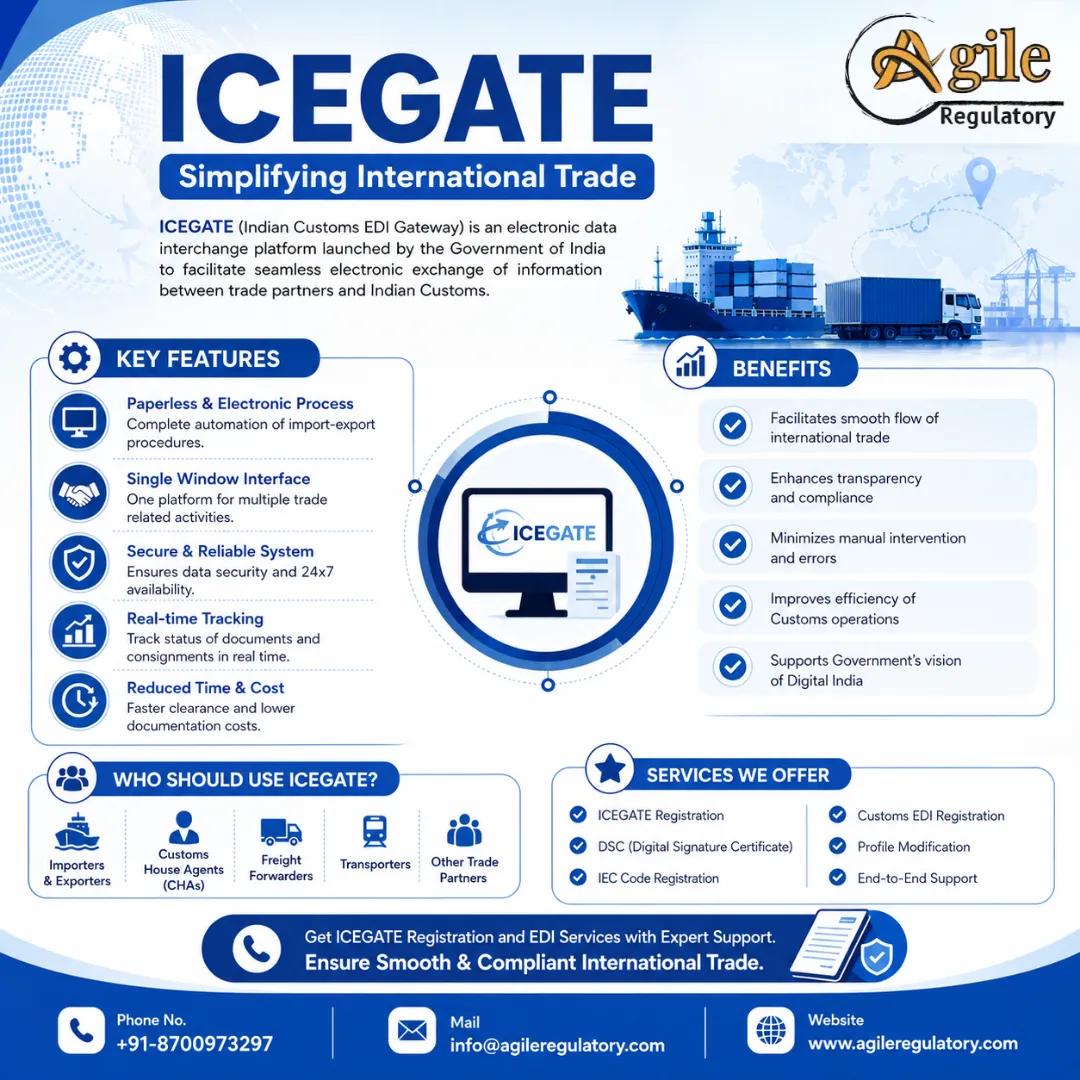
Importers and exporters need digital access to Indian Customs for filing shipping bills, bills of entry, customs documents, duty payments and export-related transactions. ICEGATE registration provides that access, while AD code registration on ICEGATE links the exporter’s authorised-dealer bank account with the customs system.
This guide explains ICEGATE registration, documents, DSC requirements, fees, the AD code process, online status checks and the role of an ICEGATE registration agent.
What Is ICEGATE Registration?
ICEGATE is the Indian Customs Electronic Gateway. It is the electronic platform used by Indian Customs and trade participants for customs-related filings and communication.
ICEGATE supports:
Electronic filing of bills of entry.
Electronic filing of shipping bills.
Customs-duty payment.
Import and export document tracking.
Electronic communication with Customs.
Bank-account registration.
Export-incentive processing.
Manifest and cargo-related filings.
DSC-based authentication.
Other customs services.
ICEGATE states that persons conducting transactions through the portal must complete the relevant registration process.
ICEGATE registration is different from IEC registration. DGFT issues the IEC, while ICEGATE provides access to customs services.
Documents Required for ICEGATE Registration
The documents required for ICEGATE registration may vary according to the user category.
Common documents include:
PAN card.
GST registration certificate.
Certificate of incorporation.
Partnership deed or LLP agreement.
Address proof.
Authorisation letter.
Identity proof of authorised signatory.
Business photograph or applicant photograph, where requested.
Class 3 DSC.
CHA licence, for customs brokers.
Shipping or carrier approval, where applicable.
Bank details.
Email and mobile information.
Other licence or permit documents, where applicable.
The name and address should be consistent across the IEC, PAN, GST, DSC and ICEGATE profile.
DSC for ICEGATE Registration
A Digital Signature Certificate, or DSC, is used to authenticate electronic applications and customs filings.
ICEGATE registration generally requires:
A valid Class 3 DSC.
DSC token or supported digital-signature setup.
Correct mapping to the authorised person.
DSC registration on the portal.
Validity of the DSC at the time of filing.
ICEGATE’s registration information states that DSC upload is required for registration and that paper-based applications are not accepted through the older registration process.
How to register DSC on ICEGATE
Obtain a valid Class 3 DSC.
Install the required token or signing utility.
Log in to the ICEGATE portal.
Open the DSC registration or profile section.
Select the authorised certificate.
Complete authentication.
Confirm successful DSC mapping.
Use the registered DSC for future filings.
Common DSC errors occur because of an expired certificate, incorrect token drivers, an unsupported browser, a mismatch in the authorised person’s name or an unregistered DSC.
ICEGATE Registration Process
The general ICEGATE registration process is as follows:
Step 1: Open the official ICEGATE portal
Visit the official ICEGATE website and select the registration option.
Step 2: Select user category
Choose the appropriate category, such as:
Importer.
Exporter.
Customs broker.
Shipping line.
Airline.
Port operator.
Other trade participant.
Step 3: Enter business details
Provide:
IEC.
PAN.
GST.
Legal name.
Address.
Email.
Mobile number.
Authorised-person details.
Step 4: Complete verification
Verify the registered mobile number, email address and linked government records.
Step 5: Upload documents and DSC
Upload the applicable documents and register the Class 3 DSC.
Step 6: Submit the application
Review the details and submit the registration request.
Step 7: Receive credentials
After successful validation, obtain the ICEGATE user ID and login credentials.
Step 8: Access the dashboard
Log in and use the available customs, financial and tracking services.
ICEGATE provides a registration manual for understanding the current registration functionality on ICEGATE 2.0.
ICEGATE Registration Fees
The ICEGATE registration fee for an importer or exporter is generally free of government charge.
However, the applicant may incur separate costs for:
Class 3 DSC.
DSC renewal.
Token or signing utility.
Professional assistance.
Documentation.
Portal troubleshooting.
Customs-broker support.
An ICEGATE registration agent may charge a professional service fee. Ask for a quotation that separates government charges from professional and DSC costs.
What Is an AD Code?
An AD code is a unique 14-digit number issued by a bank authorised to deal in foreign exchange.
AD means Authorised Dealer. The code connects the exporter’s bank account with its IEC and customs records.
AD code registration helps:
Link the exporter’s bank account with customs.
Process export shipments.
Support foreign-remittance tracking.
Receive eligible export incentives.
Facilitate electronic shipping-bill processing.
Meet applicable customs and foreign-exchange requirements.
The code is issued by the authorised dealer bank, not by ICEGATE. AD code registration on ICEGATE is used to register the bank account and AD code with Customs.
How to Obtain an AD Code
Step 1: Approach an authorised dealer bank
Contact the bank where the exporter maintains the current account used for foreign transactions.
Step 2: Complete the bank’s AD code form
Provide business, IEC, account and branch details.
Step 3: Submit supporting documents
The bank may ask for:
IEC.
PAN.
GST certificate.
Current-account details.
Cancelled cheque.
Bank certificate.
Business-constitution documents.
Board resolution or authorisation letter.
Address proof.
Exporter declaration.
Step 4: Receive the AD code letter
After verification, the bank issues an AD code letter on its letterhead.
Step 5: Register the code on ICEGATE
Use the ICEGATE bank-account module to add the bank account and AD code.
Requirements may vary by bank. Confirm the current checklist with the authorised dealer branch.
AD Code Registration on ICEGATE
The official ICEGATE advisory covers bank-account registration for collecting export incentives and declaring banks used for foreign remittances.
The AD code registration on ICEGATE process generally includes:
1. Log in to ICEGATE
Use the exporter’s ICEGATE user ID and password.
2. Open the bank-account section
Go to the profile or financial-services section and select bank-account management.
3. Select the AD code option
Choose Foreign Remittance Account (AD Code) or the equivalent option displayed on the portal.
4. Add a bank account
Select Add New Bank Account.
5. Enter bank details
Provide:
Bank name.
Branch name.
14-digit AD code.
Bank-account number.
Customs location.
Document type.
Invoice Reference Number, where requested.
Other required fields.
6. Upload proof
Upload the AD code letter, bank certificate, cancelled cheque or other proof requested by ICEGATE.
7. Submit and verify
Submit the details and complete OTP or other electronic verification.
8. Wait for Customs approval
The bank account and AD code information is reviewed through the customs system.
9. Check the status
Monitor the bank-account or AD code section for approval, rejection or deficiency.
ICEGATE’s official advisory instructs users to provide document type, invoice reference number and proof documents while registering a bank account.
AD Code Registration in ICEGATE: Customs Location
An exporter may need to associate the bank account with the customs location where export shipments are filed.
Before submitting, verify:
Port or airport code.
Customs location.
Bank branch.
AD code.
Account number.
IEC.
Exporter legal name.
An incorrect customs location may delay shipping-bill processing or require correction.
If the exporter uses several ports, review whether the current system requires location-wise registration or whether the bank-account registration applies across the relevant locations.
AD Code Registration Fees
ICEGATE generally does not charge a separate government fee for online AD code registration.
However, charges may arise from:
Bank-issued certificate or letter.
Bank service charges.
DSC.
Professional assistance.
Document certification.
Correction or resubmission support.
Bank fees vary by institution. Confirm the current charges with the bank and request a clear professional-service quotation if appointing an agent.
Common ICEGATE Registration Errors
IEC mismatch
The legal name, PAN or address entered on ICEGATE does not match DGFT records.
DSC error
The DSC is expired, not installed, not mapped or linked to the wrong authorised person.
Mobile or email mismatch
The registered contact details do not match the linked government profile.
Bank-account mismatch
The bank letter, cancelled cheque and ICEGATE account show different account numbers or legal names.
Wrong customs location
The exporter selects an incorrect port or customs station.
Unclear bank proof
The AD code letter is unreadable, unsigned, incomplete or not issued on the bank’s letterhead.
Incomplete authorisation
The applicant fails to upload the board resolution or authorisation letter.
Duplicate bank account
The same account is submitted again without checking the existing profile.
Difference Between IEC, ICEGATE and AD Code
Requirement | Issuing or supporting authority | Purpose |
|---|---|---|
IEC | DGFT | Identifies a business for import and export |
ICEGATE registration | Indian Customs / CBIC portal | Provides access to customs e-filing and services |
AD code | Authorised dealer bank | Identifies the bank branch and foreign-exchange account |
AD code registration | ICEGATE customs system | Links the bank account and AD code with customs |
An exporter may need all three before completing its export setup.
How Agile Regulatory Can Help
Agile Regulatory assists importers and exporters with:
ICEGATE registration.
IEC profile verification.
DSC registration and mapping.
AD code application.
Bank-letter review.
AD code registration on ICEGATE.
Customs-location selection.
Online status checks.
Error correction.
Portal queries.
Exporter dashboard support.
Documentation and compliance coordination.
Our objective is to help exporters complete ICEGATE and AD code registration with accurate business, bank, IEC and customs-location information.
Conclusion
ICEGATE registration gives importers and exporters access to India’s electronic customs system. AD code registration links the exporter’s authorised-dealer bank account with ICEGATE and supports customs processing, foreign-remittance reporting and eligible export incentives.
ICEGATE registration and AD code registration are generally free from separate government charges, although DSC, bank and professional-assistance costs may apply.
Agile Regulatory can assist with ICEGATE registration online, DSC mapping, AD code registration, documents, status checks and portal support.
Contact Agile Regulatory to review your IEC, bank account and customs-registration requirements before filing export documents.
Frequently Asked Questions
1. What is ICEGATE registration?
ICEGATE registration allows importers, exporters and other trade participants to access Indian Customs’ online filing, payment, tracking and communication services.
2. What is an AD code?
An AD code is a unique 14-digit number issued by an authorised dealer bank for foreign-exchange transactions. It links the exporter’s bank account with customs and the IEC.
3. Who issues the AD code?
The authorised dealer bank issues the AD code. The exporter then registers it on ICEGATE.
4. Can I complete AD code registration online?
Yes. After obtaining the AD code letter from the bank, the exporter can register the bank account and AD code through the ICEGATE portal.
5. What documents are required for ICEGATE registration?
Common documents include IEC, PAN, GST certificate, address proof, authorisation letter, Class 3 DSC, identity proof and business-constitution documents.